If you HAVE NOT INSTALLED Mozilla Thunderbird YET,
download and intall it first! [HERE]
I wrote the first version in Feb 13, 2008, and I needed to add one more step at the end.
If you get errors when you try to post (write) something, please look up step B at the end.
If you get errors when you try to post (write) something, please look up step B at the end.
Step 1
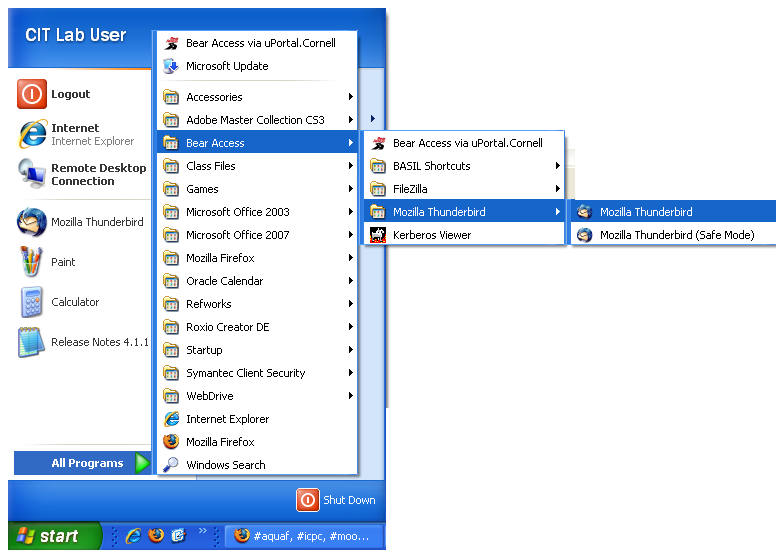
First of all, you know how to launch it.If you are using a CIT lab computer, there should be something like this:
Step 2
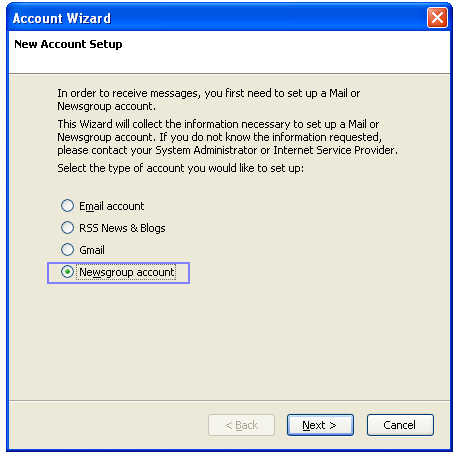
Choose "Newsgroup account" and click Next.
Step 3
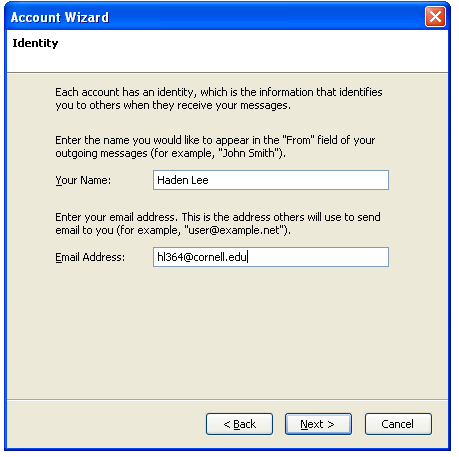
Write your name (which appears on the newsgroup), and your email address.Then cick "Next"
Step 4
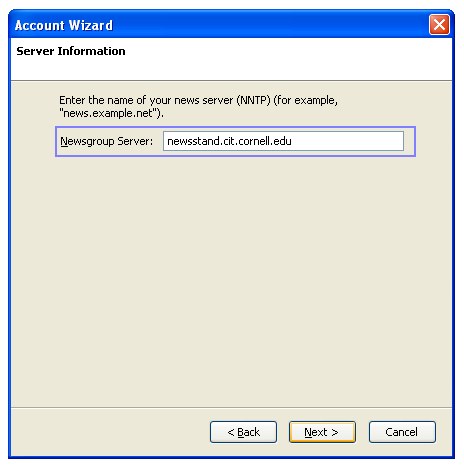
The most important thing: the newsgroup server. It is:newsstand.cit.cornell.edu
Copy & paste it!
Step 5
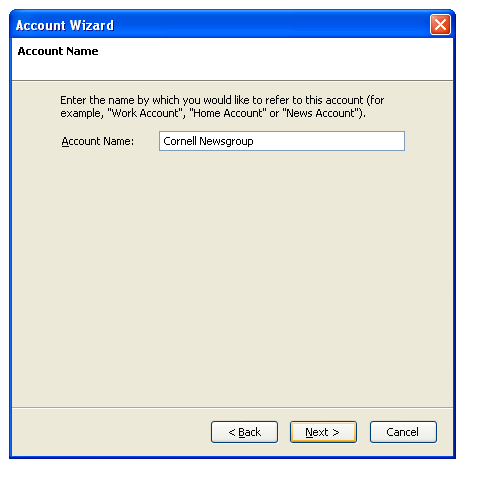
Now set the name for this newsgroup.
Step 6
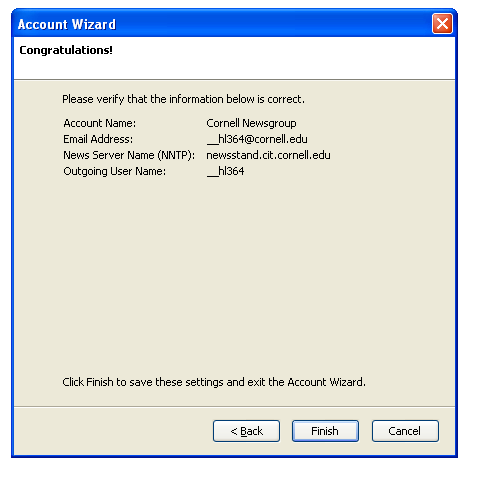
Double check the information. If it's all right, Click "Finish"!
Step 7
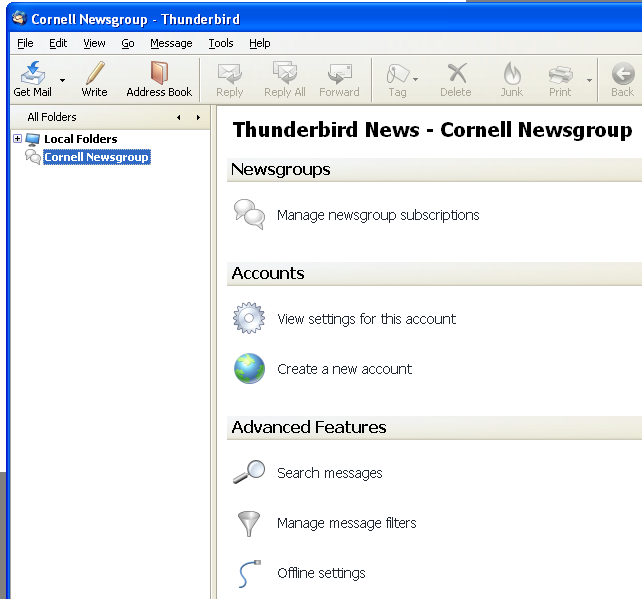
Now your Mozilla Thunderbird should look like the picture below.Click "Manage newsgroup subscriptions".
Step 8
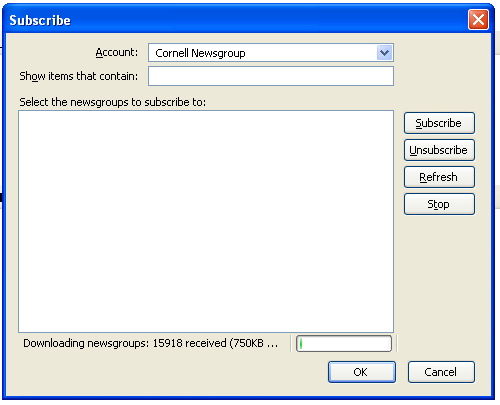
It will say it's downloading something... (if you are online)
Step 9
If you type the newsgroup name cornell.class, you will see a lot of different newsgroups.If you type cornell.class.cs, you will see CS course newsgroups.
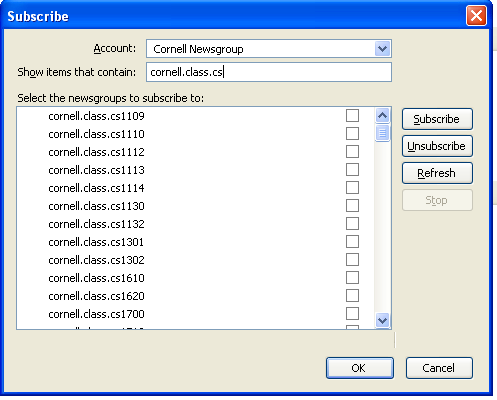
Subscribe to CS 2800 (simply click the check-box).
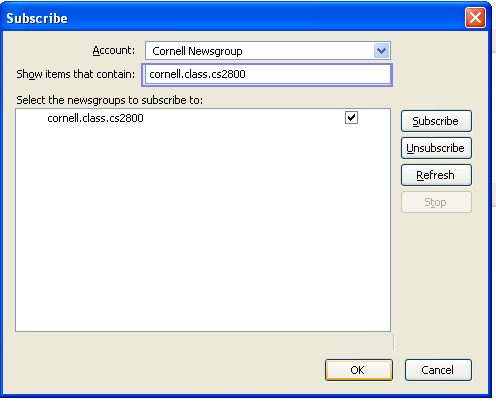
Step A
Now you can see you are subscribing the cs2800 newsgroup (and more).We are not done yet. You cannot post anything until you do the next step.
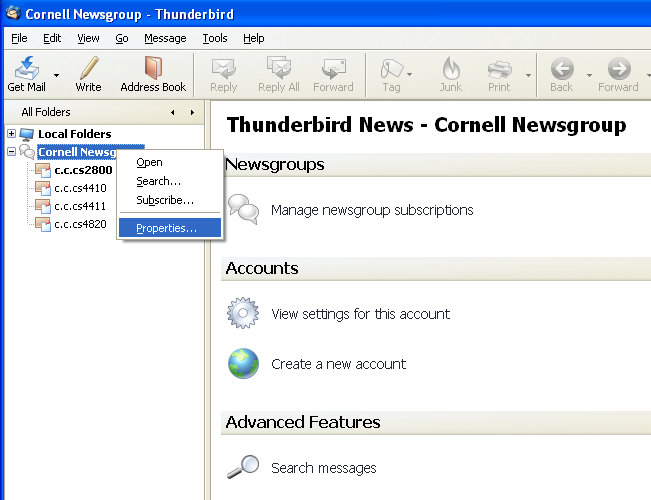
Step B
Now, you are almost done.As of this writing (March 15, 2009),
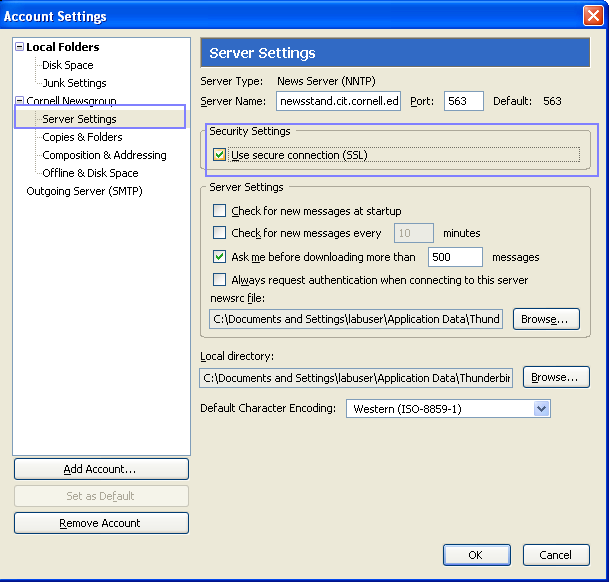
you need to ensure that your newsgroup application uses security connection (SSL).
See more details here.
So just check that box (by default, it's unchecked) and you are all set.
If you encounter any problems while following this guide,
please feel free to email me (my email can be found in Step 3).
please feel free to email me (my email can be found in Step 3).
Last update(Mar 15, 2009)