Python in CS 1133
Python comes in several shapes and sizes. To make sure that everything works properly, we require that every single person in the course use the same version of Python. You are free to either work in the labs or to use your laptop. But whatever the case, your version of Python must be the same as what we are using in the labs. Hence, even if you already have Python installed on your computer, we ask that you install a new version (see instructions below) so you can be consistent with everyone else.
As you will see, these instructions are a bit long. Installing Python is often much more complicated than simply using it. As many people in this class have not programmed before, we have tried to make installation as simple as possible via step-by-step instructions. You are not expected to understand what many of these steps are doing. Furthermore, these instructions are lengthy mainly because we are trying to support as many operating systems as possible. In practice, you should be able to finish the installation in 15-20 minutes.
If you have problems, and if you have a laptop, the best thing to do is to bring it in to someone to look at. Any of the course staff can help you with this. If you cannot bring in your computer, we have provided you with some instructions below. If you are having difficulty with these instructions, please post on Ed Discussions.
Installing Python
While installing the base Python package is usually straight-forward, getting add-ons for Python can be a bit tricky. In the past, we simplified this process by recommending students install the Anaconda version of Python. However, the licensing restrictions on that distribution have become incompatible with this course, and we no longer recommend it.
Unfortunately, this means that our recommended Python installation now depends upon your operating system. Find your operating system below and be sure to completely read the installation instructions. While you are unlikely to make any mistakes, it is best for you to do things in exactly the order we tell you to. As we said, you do not need to understand what is going on here.
Installing on Windows
This class supports either Windows 10 or 11. We do not support Windows 8 anymore, nor do we support older 32-bit versions of Windows. If you are using an older version of Windows, we recommend that you upgrade now before the semester starts. If your machine cannot support a newer version of Windows, you will need to work on the lab computers in Phillips 318.
For this class, we recommend Python version 3.12.10. This is an extremely stable version of Python and has been tested on other platforms as well. Newer versions of Python are still going through bug fixes, and so we are not ready to switch to them yet.
The above link will actually take you to the Microsoft Store. Ironically, we have found this is the best version of Python for Windows. The version from python.org does not install Python in a way that you can use from the command shell. This version is fully up-to-date and it properly installs the command line tools.
Because this is a Microsoft Store app, it is extremely easy to install. Just click the Install button and follow the instructions.
Installing on Macintosh
This class supports any version of macOS starting from Big Sur (macOS 11) or higher. We do not support Catalina (macOS 10.15) or older versions of macOS. If you are running an Macintosh with an operating sytem that old (pre-2019), it is likely that your machine is too old for this course. In that case, you should talk to the course instructor about your options, which may include working with the lab computers in Phillips 318.
Macintosh computers come with Python built-in, but you should not use that version of Python. That version is locked down, and it will not allow us to add extensions. Instead, you are going to download a second copy of Python from python.org. This will not delete the built-in Python (which macOS needs), but instead will exist at the same time.
Most applications these days require that you specify whether your computer is running an Intel chip or Apple Silicon. However, the Python installer is a Universal installer, meaning it works with all Macintoshes. Download the installer and run it. Follow the instructions; you do not need to customize your installation.
Installing on Linux
Linux installation is possible, but it is not as straight-forward as the two main OS options. In particular, python.org does not provide a pre-built binary for Linux. That means that Linux users must be comfortable with building a program from source code. If you are not comfortable with this, you should rethink about using Linux for this course.
./configure checks which compilers and libraries are already available; it does not install anything. Before building Python, install the required development tools and libraries for your Linux distribution.
On Ubuntu, Debian, and related distributions, type
sudo apt update
sudo apt install build-essential pkg-config libssl-dev zlib1g-dev \
  libbz2-dev libreadline-dev libsqlite3-dev libffi-dev liblzma-dev \
  tk-dev uuid-dev
On Fedora, RHEL, and related distributions, type
sudo dnf install gcc make pkgconf-pkg-config openssl-devel zlib-devel \
  bzip2-devel readline-devel sqlite-devel libffi-devel xz-devel \
  tk-devel libuuid-devel
These commands install GCC, make, and the development headers used by the Python standard library. If you use another Linux distribution, ask the course staff or consult the package manager documentation before continuing. The official CPython build guide has additional details.
Download the file above, and then navigate your Terminal to the directory containing the file. This file is a .tgz file, meaning it is in a compressed format. To uncompress it, type
tar -xzf Python-3.12.10.tgzThis will create a folder named Python-3.12.10 in the same directory. Navigate to that folder and type
./configure
make
make test
This will build and verify Python for your machine. It is possible that you may fail a few of the tests. This is okay, as not all machines support all Python features. But if you get a fatal error, you may have to reconsider your usage of Linux.
If Python is successfully built, you can install it with the command
sudo make installThis will install Python as python3.
Running the Python Shell
Before you do anything else, you must fully test out your Python installation. You need to verifyt that works correctly before installing additional packages. This requires that you familiarize yourself with command shell for your OS. The command shell is a text-based version of the Windows Explorer or Finder. You can use it to move and rename files and folders. It is also how we will run Python in this class.
Using the command shell requires a bit of practice, so we have created a separate page of instructions for this. Right now, all you need to know is how to start up the command shell. You do not need to know any special commands. Start the command shell for your OS and type
pythonThis will put you in the “Python Interactive Shell”.
The Python Interactive Shell looks exactly like the command shell except that it takes Python commands (and does not respond to operating system commands to list files or change the working directory). While the command shells are different for all operating systems, the Python Interactive Shell should look and behave exactly the same way for everyone. On Windows, it will look something like this.
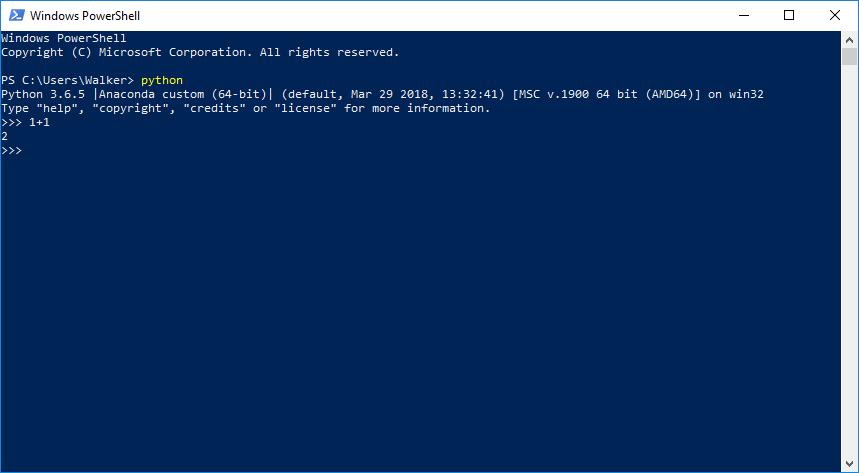
The >>> symbols are the prompt. To get the shell to do something, just type a Python command. For example, type
>>> 1+1and hit Return (do not type the >>>; it is already there). See what happens?
To exit the Python Interactive Shell, type quit() and hit Return. You can also exit by typing Control-D.
Python installation details are adapted from CS 1110.